Foot Locking
Pin grounded feet in world space. Eliminate foot sliding for clean walk cycles, planted stances, and impactful kicks — all live in the browser.
Tier: Builder Pro Menu:
Physics → Foot Locking
Foot Locking was rebuilt end-to-end for v1.1: the fix now bends the leg naturally instead of dragging the foot bone (no more feet buried under the floor), live emerald rings + per-foot cm readout show exactly how much slide is being killed while you tune, a new Anchor Follow slider handles slow choreography, and Bake to Timeline turns the fix into ordinary editable keyframes that survive export to any platform.
The math behind Foot Locking is published in our open whitepaper: “Anti-Skating Foot-Locking Constraint for Browser Animation” — DOI 10.5281/zenodo.17849581.
What it does
When a foot touches the ground in a real movement (a step in a walk cycle, the planted foot of a punch, the standing foot in a kick), it stays anchored at that exact world-space position until it picks up. AI-generated and even manually-keyed animation often violates this — the foot slides along the floor while the animator intended for it to be planted. The motion looks "skating" or "ice walking" and immediately reads as fake.
Foot Locking is a live constraint: while enabled, it runs after the mixer every frame, detects which foot bones should be locked, and pulls them back to their anchor positions if they drifted. The result: planted feet stay planted. Walk cycles read as actual walking, not gliding.
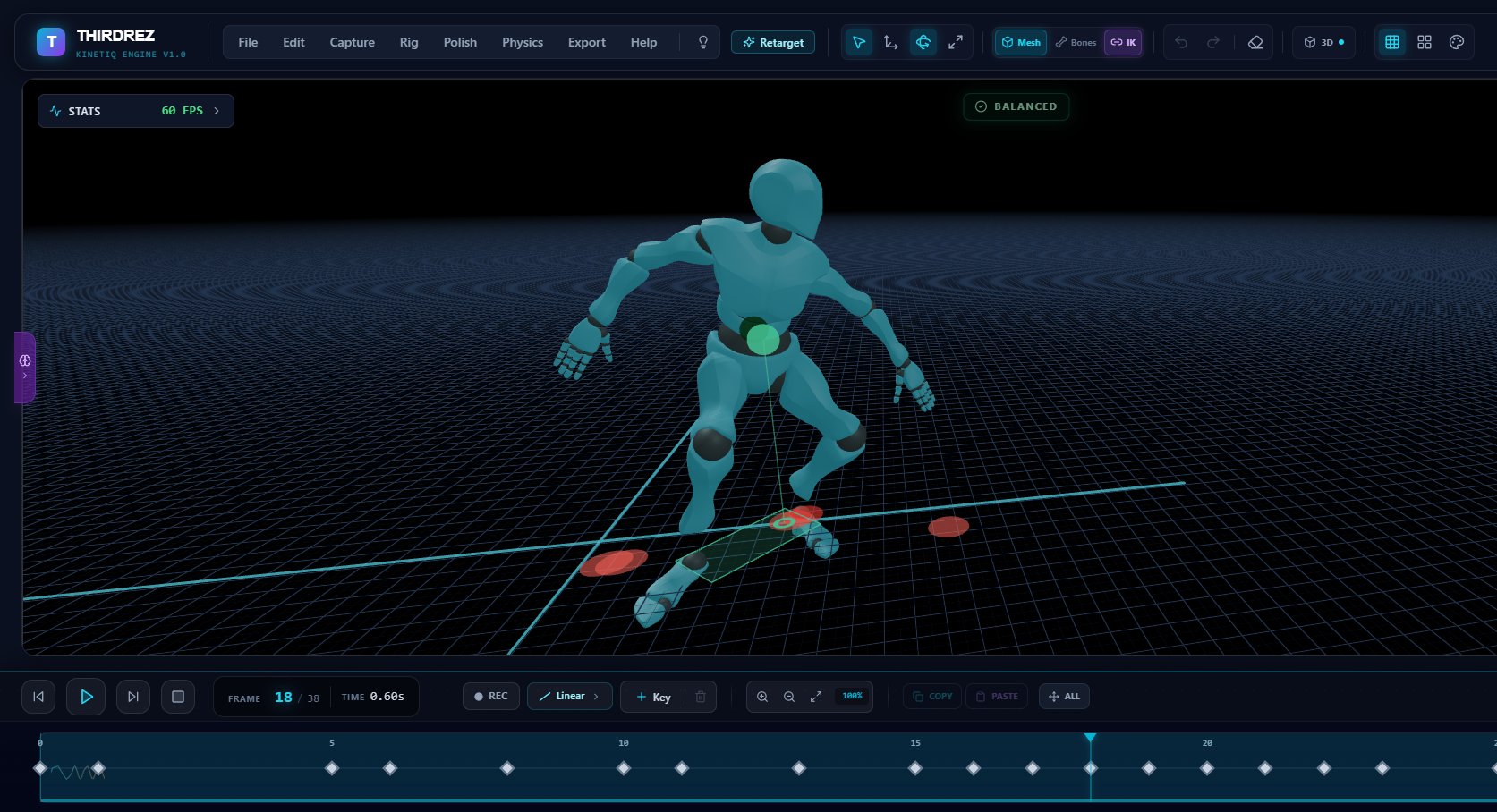
Foot Locking running live during playback. The red disks are the detected anchor positions; the avatar moves over them while planted feet stay welded to those exact world-space points. The green pill at the top reports the overall balance state.
How detection works
The detector samples the clip in an isolated clone of the skeleton, frame by frame:
- Velocity check — for each foot bone (default targets: bones whose name contains
foot,ankle,toe, orheel), compute the per-frame XZ velocity (horizontal speed). - Threshold compare — if the velocity is below a tunable Lock Threshold, the foot is considered planted at that frame.
- Anchor capture — for the first frame in a contiguous "planted" run, capture the exact world-space XZ position. That's the anchor.
- Run aggregation — successive frames in the same planted run share the same anchor. The constraint will pull the foot back to it on each frame.
Default threshold: 0.005 units/frame. Below that = planted, above that = stepping/lifting.
Threshold is tunable via slider. Lower = stricter (only the very-still frames count as planted), higher = more permissive (more frames will be locked, may over-lock during transitions).
The footprint trail visualization
Once detection runs, the floor under the avatar populates with persistent translucent disks — one per detected anchor. Red-orange for left foot anchors, slightly lighter red for right. As the avatar walks, you watch its feet step exactly onto the disks. The disks stay anchored in world space; the avatar moves over them.
This is the classic footprint-trail visualization brought to the browser. It instantly shows whether your character's stride is reading correctly:
- Disks placed in a clean alternating L-R pattern → walk cycle is healthy.
- Disks bunched together → over-locked or stepping in place.
- Disks scattered randomly → detection didn't catch the planted frames; tune the threshold.
The live constraint
Detection is data — the constraint is what acts on that data during playback.
When Foot Locking is enabled (the toggle in the Physics menu, with a green checkmark when active):
- Every frame, the mixer runs first and computes the new bone positions per the underlying animation.
- Foot Locking runs after the mixer.
- For each detected anchor that's active at the current frame:
- If the foot drifted from its anchor, the fix bends the whole leg (the same validated recipe the mocap pipeline uses) so the foot holds its plant — knee and hip adjust, geometry stays intact.
This is the heart of the v1.1 rebuild. The old approach dragged the foot bone directly, which buried feet under the floor and stretched the mesh. The new one moves the leg the way a real leg moves to keep a foot planted.
Live correction feedback — see what's being fixed
While the fix runs, the viewport and panel show you exactly what it's doing, in real time:
- Emerald rings mark the spot where each foot is currently being held.
- A colored vector at each foot shows the direction and size of the correction — how far the raw animation tried to slide versus where the foot is held.
- The panel shows a live "Live correction L / R" readout in centimeters per foot.
Tune the sliders and watch the numbers respond. When the cm readouts sit near zero on clean strides and spike only where the raw clip genuinely slid, you've got it right. No bypass buttons needed — the feedback is continuous. (Ctrl+Z after baking is your before/after.)
The three sliders
| Slider | What it controls |
|---|---|
| Lock Threshold | Below this speed, a foot counts as planted. Raise it if sliding survives; lower it if feet feel "stuck" during transitions |
| Floor Y | Where the ground is. If your avatar hovers or sinks, match this to your scene's actual floor. Default 0.0 |
| Anchor Follow | New in v1.1. At 0% the foot is glued to its plant spot. Higher values let the foot follow slow choreography (a slow dance step, a deliberate weight shift) while still killing fast slide — a soft anchor instead of a hard one. Default 6% |
Anchor Follow is the fix for the classic over-lock problem: a long, slow dance move where the foot should travel a little, but a hard lock pinned it to one spot for the entire move.
Tuning workflow
- Toggle Foot Locking on. The disks appear immediately on the floor.
- Watch playback with loop enabled — and watch the live cm readouts.
- Sliding still visible? Raise the threshold.
- Feet "stuck" during transitions? Lower the threshold.
- Slow choreography being flattened? Raise Anchor Follow.
- Avatar hovering/sinking? Adjust Floor Y.
- Iterate until the disks land cleanly in stride and the rings hold each plant without fighting the motion.
Bake to Timeline — make the fix permanent
The live fix is a preview. Bake is the commit:
- Tune until the live result looks right.
- Click Bake to Timeline in the panel (the strip turns violet when armed, emerald when baked).
- The corrections become ordinary editable keyframes on the timeline.
Why this matters:
- It survives export. A live-only fix exists only inside Kinetiq; baked keyframes ship in your FBX / GLB / BVH /
.animto Second Life, Unreal, Blender — anywhere. - It's editable. Baked keys respond to Simplify, Smooth, manual tweaks — the result is normal animation data, not a black box.
- It's undo-able.
Ctrl+Zrestores the pre-bake clip.
After a successful bake, the live fix turns itself off — the keyframes have taken over.
The skating score
In the Foot Locking panel header, alongside the L-Locked / R-Locked counts, you see a Skating percentage:
[L Locked]  [R Locked]  [Skating]
   12          14         18%
Skating is the inverse of Foot Locking quality — 0% means perfectly planted feet (good), 100% means wildly skating (bad). The classification tier (great / good / borderline / poor) is shown beneath the number.
The same metric drives the Foot Locking ring in Quality Score.
Edge cases
Avatars without obvious foot bones
Detection looks for bones whose name contains foot, ankle, toe, or heel. Quadrupeds, fantasy creatures, or rigs with non-standard naming may need bone names added to the detection list. Open an issue on Discord and we'll add convention rules.
Floor that isn't at Y=0
If your scene has a non-zero floor (a platform, a stage), set the Floor Y slider to the platform height. Foot Locking treats that as the contact plane.
Mid-air sequences
Frames where both feet are clearly above the floor (not in contact) bypass the constraint — Foot Locking only acts when at least one foot was detected as planted. Jumps and aerials work normally.
Very fast motion
Above the velocity threshold, feet are treated as moving even if briefly. Sprints sometimes need the threshold raised slightly to capture the brief contact at full stride.
Conflict with custom IK constraints
If you're already running a custom IK setup on the legs, Foot Locking can interfere. Disable Foot Locking before applying custom IK.
Workflow — typical session
- Import a walk cycle or locomotion clip.
- Toggle
Physics → Foot Lockingon. Disks pop onto the floor; the panel shows L/R counts, Skating %, and the live correction cm readouts. - Play with loop. Watch the feet — and the emerald rings holding each plant.
- Sliding visible? Raise threshold by 0.001-0.002. Slow choreography being flattened? Raise Anchor Follow.
- Once the disks look right and Skating % is low (<10% is great), click Bake to Timeline.
- Run Quality Score afterward to see the Foot Contact ring fill green.
- Export — the fix ships inside the file, to any platform.
Related
- Quality Score — Foot Locking is one of the four scored metrics
- Center of Mass — pairs with Foot Locking for full-body balance validation
- Joint Limits — the IK cascade in Foot Locking respects joint limit clamps
- Whitepaper: Anti-Skating Foot-Locking Constraint for Browser Animation (Zenodo, DOI 10.5281/zenodo.17849581)