Mirror Animation
Mirror left ↔ right side of any animation. Live preview, three modes, free for every tier.
Tier: Free for all (Free Style and up). Mirror is a tool, not a premium feature — same way copy/paste is universal. Menu:
Polish → Mirror AnimationShortcut:Ctrl + M
What it does
Takes the animation on the active avatar and produces a mirrored version. The result is persistent — it survives playback, retargeting, and export. The viewport visualization makes the mirror axis visceral: you see the YZ plane your motion is being reflected across, plus blue/pink floor tints showing which side is which, plus brightness-pulsing direction arrows showing which side dictates.
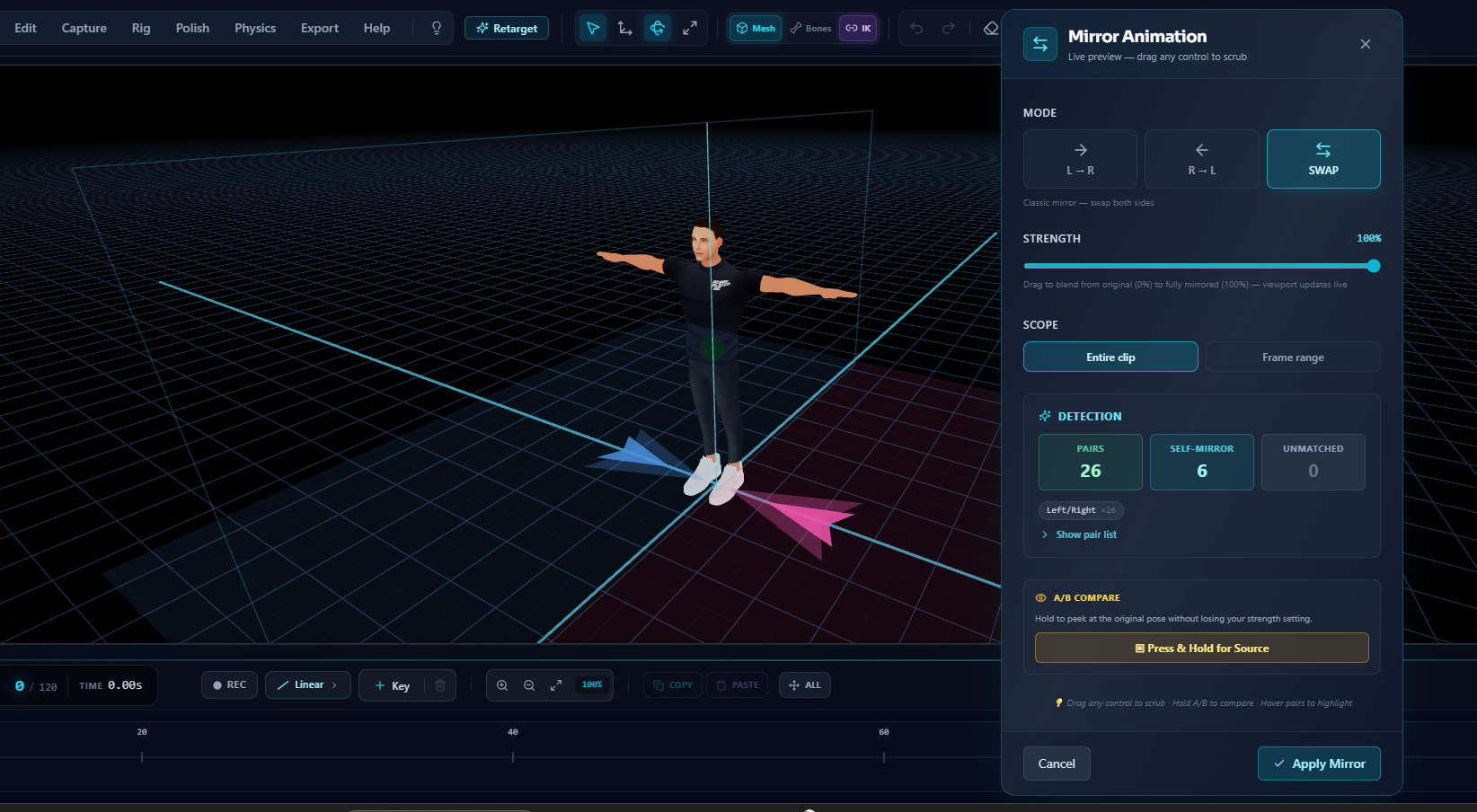
Mirror Animation in action. The vertical plane and the L/R floor tints make the mirror axis visible right in the viewport — no guesswork about which side is dictating. Drag the strength slider to scrub between original and fully mirrored — the preview is live, and Ctrl+Z after Apply is your before/after.
Second Life Bento center bones (mPelvis, mSpine, mNeck…) were never detected as self-mirror bones, so SWAP on an SL avatar swapped the limbs but left the spine behind — mangled legs. Fixed in v1.1: Mirror now handles every rig (UE5, Second Life, Mixamo, and friends), and Apply is undo-able with Ctrl+Z like every other clip tool.
This solves three real problems:
- Symmetric motion authoring. Pose one side of the body, mirror to the other instead of duplicating manual work.
- Asymmetric rig debugging. When a clip looks "off," running it through SWAP and back catches subtle bilateral inconsistencies.
- Variant generation. Create left-handed vs right-handed versions of an action animation in one click.
The three modes
Mirror is directional — you choose which side dictates and which side becomes the mirror.
L → R — Left side dictates
The right side becomes a mirrored copy of the left. Right-side bones get overwritten; left side stays exactly as you authored it.
Use when: you fully animated the left arm/leg/finger and want the right side to match symmetrically without re-doing the work.
R → L — Right side dictates
The opposite — left side becomes a mirrored copy of the right.
Use when: muscle memory or workflow had you authoring the right side first.
SWAP — Classic mirror
Both sides swap with their mirrored counterpart. Self-mirror bones (spine, hips, neck, head, pelvis, etc.) also get their own quaternion mirrored across YZ.
Use when: you want the entire animation flipped left-right — like watching it in a real mirror. Best for action/locomotion variants.
The strength slider
Drag from 0% (original pose, untouched) to 100% (fully mirrored). Anything in between is a SLERP blend — the bone rotates along the spherical-shortest-arc between original and mirrored.
This is not just decorative. Common workflows that lean on partial strength:
- Subtle bilateral correction — strength
30-50%smooths out tiny asymmetries without destroying the original character of the motion. - A/B compare authoring — drop strength to
0%, scrub timeline, raise to100%, scrub again. Catch issues at any point in the clip. - Variant blending —
50%strength gives a "split the difference" pose that often reads as more natural than either extreme.
The slider runs live. Drag it and the viewport repaints in real time (RAF-debounced so it stays smooth even on dense rigs).
The "projetor direcional" viewport viz
When the modal opens, four overlays appear in the 3D viewport:
1. Vertical wireframe rectangle on the YZ plane
The literal mirror surface, drawn as a translucent cyan glass divider crossing the avatar vertically. Makes the abstract concept "your motion is being reflected across this plane" concrete and visible.
2. Blue/pink floor tints
The floor under the avatar is split — left half (X < 0) gets a soft blue tint, right half (X > 0) gets a soft pink tint. Instant L/R orientation read without consulting any UI.
3. Bright cyan center axis
A thin line at exactly X = 0, gently pulsing at 2 Hz. Your eye locks onto the axis even when the rest of the visualization is busy.
4. Two big floor arrows
One on each side, pointing across the mirror. Brightness signals which side is dictating:
| Mode | Bright arrow | Dim arrow |
|---|---|---|
L → R | Blue (left), pulsing | Pink (right), dimmed |
R → L | Pink (right), pulsing | Blue (left), dimmed |
SWAP | Both pulsing, slightly out-of-phase | — |
The pulse is intentional — a static color works, but the kinetic motion catches the eye and makes the directionality unambiguous within ~200 ms.
Detection card — what gets paired
Every time you open the modal, Mirror runs bone-pair detection across your avatar's skeleton and surfaces a summary:
✨ Detection
┌──────────┬─────────────┬──────────────┐
│  Pairs   │ Self-mirror │  Unmatched   │
│   29     │      9      │      0       │
└──────────┴─────────────┴──────────────┘
[Left/Right ×29]
Pairs
Bones that found a counterpart. The number to celebrate — these are what actually get swapped or copied across the mirror.
Self-mirror
Bones on the center line: spine, hips, pelvis, neck, head, chest, torso, waist, cog, jaw, tongue, belly — including prefixed variants like Second Life Bento's mPelvis / mSpine1 / mNeck (detected since v1.1). They don't have a counterpart, but in SWAP mode they get their own quaternion mirrored across YZ (so the whole pose stays symmetrically valid).
Unmatched
Bones whose name suggests a side (matched a left/right token) but no counterpart was found. Example: a rig has LeftFoot but typo'd the other side as RigthFoot — LeftFoot shows up as unmatched. These bones are skipped silently during mirror.
Token chips
Each chip shows a detection rule that matched and how many pairs it found, e.g. Left/Right ×29. If you see multiple rules listed (Left/Right ×8 · _l/_r ×3), the rig mixes naming conventions — that's fine, all rules run.
The 9 detection rules cover most production rigs:
| Rule | Example | Used by |
|---|---|---|
Left/Right (substring, case-aware) | LeftFoot ↔ RightFoot, mFootLeft ↔ mFootRight | Mixamo, Second Life Bento, Roblox |
_L_ / _R_ (middle token) | Bip01_L_Foot ↔ Bip01_R_Foot | 3DS Max biped |
_l_ / _r_ (lowercase middle) | bip_l_arm ↔ bip_r_arm | Custom rigs |
_l / _r (trailing) | foot_l ↔ foot_r | Mixamo, Unreal Mannequin |
_L / _R (trailing uppercase) | Foot_L ↔ Foot_R | Some Maya rigs |
.L / .R (trailing dot) | Hand.L ↔ Hand.R | Blender Rigify |
.l / .r (lowercase trailing dot) | hand.l ↔ hand.r | Custom Blender |
L_ / R_ (leading) | L_Hand ↔ R_Hand | Maya rigs |
l_ / r_ (lowercase leading) | l_hand ↔ r_hand | Custom |
If your rig hits 0 pairs / many unmatched, the convention isn't covered. Open the browser console, run:
useEditorStore.getState().loadedModel.traverse(o => { if (o.isBone) console.log(o.name) })
Send 5-10 bone names from the unmatched group via Discord and we'll add the missing rule (usually a single line of code).
Before / after — the professional A/B
The live preview is your comparison tool:
- Strength
0%= the original, untouched motion. Drag the slider down any time to peek at the source, then back up. - Cancel (or
✕) restores the exact pre-modal state — nothing committed. - After Apply,
Ctrl+Zflips between mirrored and original instantly.
(v1.1 note: the old "Press & Hold for Source" button was retired — the slider + undo do the same job with less chrome.)
Bone-pair highlight blink
Inside the Detection card, expand Show pair list to see every detected pair as a row:
[ mixamorigLeftFoot ]  ↔  [ mixamorigRightFoot ]
[ mixamorigLeftHand ]  ↔  [ mixamorigRightHand ]
...
Hover any row → two pulsing spheres appear in the viewport, anchored to those bones (one blue on the left side, one pink on the right). The spheres track the bones through playback, so you can see exactly which joints will be affected before applying.
This is invaluable for debugging unfamiliar rigs. If the spheres land on the wrong bones, you've caught a naming-convention issue before applying a wrong mirror.
Range support — Entire clip vs Frame range
The default scope is Entire clip — every keyframe in the animation gets mirrored.
Toggle to Frame range and pick Start / End frames. Only keyframes whose time falls within [Start/fps, End/fps] are mirrored; keyframes outside the window survive unchanged. Useful for:
- Mirror only the first half of a "throw" animation, leaving the recovery untouched.
- Apply mirror to a transition segment without affecting the bookends.
- Test mirror on a small range before committing to the whole clip.
Workflow — typical session
- Load avatar with animation (File → Add Avatar / File → Import / Library).
Polish → Mirror Animation(orCtrl+M).- Modal opens. Strength fades in from 0% to 100% over 300ms (eased) — you see the mirror happening, not just the result.
- Glance at Detection card. Confirm pairs count looks reasonable for your rig.
- Pick a mode. The viewport arrows light up to confirm direction.
- (Optional) Drag strength to find the right blend for your shot.
- (Optional) Toggle Frame range and set start/end.
- (Optional) Drop strength to 0% and back to confirm the change is an improvement.
- Apply Mirror to commit. Modal closes. Animation now plays back mirrored.
- To undo:
Ctrl+Z(history is preserved).
Math — what's actually happening
Quaternion mirror across YZ plane (Y-up world):
q' = (qx, -qy, -qz, qw)
This formula reflects a rotation across the YZ plane. It preserves rotation magnitude (|θ| stays the same) and inverts the rotation axis's X-component, which corresponds to a real-world mirror reflection.
Position mirror across YZ plane:
p' = (-px, py, pz)
Invert the X coordinate.
Strength blend for quaternions uses SLERP (Spherical Linear Interpolation):
q_output = slerp(q_original, q_mirrored, strength)
For positions, plain linear interpolation:
p_output = lerp(p_original, p_mirrored, strength)
Cross-track sampling — when the left and right tracks have different keyframe times (asymmetric authoring), Mirror samples the opposite track at this keyframe's time using SLERP/LERP between adjacent existing keyframes. The result is symmetrically valid even on rigs where L and R weren't authored against the same timeline.
Edge cases
Asymmetric rest poses
The math assumes left and right bones have rest poses that are themselves mirrored across YZ. This is true for Mixamo, Second Life Bento, Unreal Mannequin, Roblox R15. If a rig has left arm bent at rest and right arm straight at rest, mirror at strength 100% will look proportionally correct but won't visually align — the deltas are right, the absolute pose isn't.
Custom rigs with novel naming
If detection finds 0 pairs on your rig, the naming convention isn't in the 9-rule library. Surface 5-10 unmatched bone names via Discord and we'll add the rule.
Bones outside the body
Weapon mounts, clothing accessories, props — if their names don't include any side token, they're treated as "ignored" (not paired, not self-mirror). Mirror leaves them alone, which is usually what you want.
Locked/protected bones
Mirror writes to clipData tracks directly. If a bone is hidden or its keyframes are protected by another tool, that protection still applies — Mirror touches the data, but the mixer still respects the constraint.
Related
- Loop Fixer — the other Polish-menu tool, also clipData-based with live preview
- Quality Score — run after mirroring to check the result against bilateral asymmetry metrics
- What's New — Kinetiq 1.0 launch overview
- Roadmap — see what else is coming for the Polish menu