Retarget Studio
A premium split-screen workflow for taking animation from one rig and putting it on another. The thing that used to need Maya now happens in the browser.
Tier: Builder Pro Menu:
File → Retarget Animation(orCtrl + Shift + I)
What it does
You have an animation built for one rig (say, a Mixamo walk cycle). You have an avatar built on a different rig (say, a Second Life Bento character). The animation's bone names, bone counts, and proportions don't match the target. Naively applying the animation produces garbage — the avatar's elbows end up where Mixamo's knees were, the legs are too short, the spine bends wrong.
Retarget Studio solves this. The workflow:
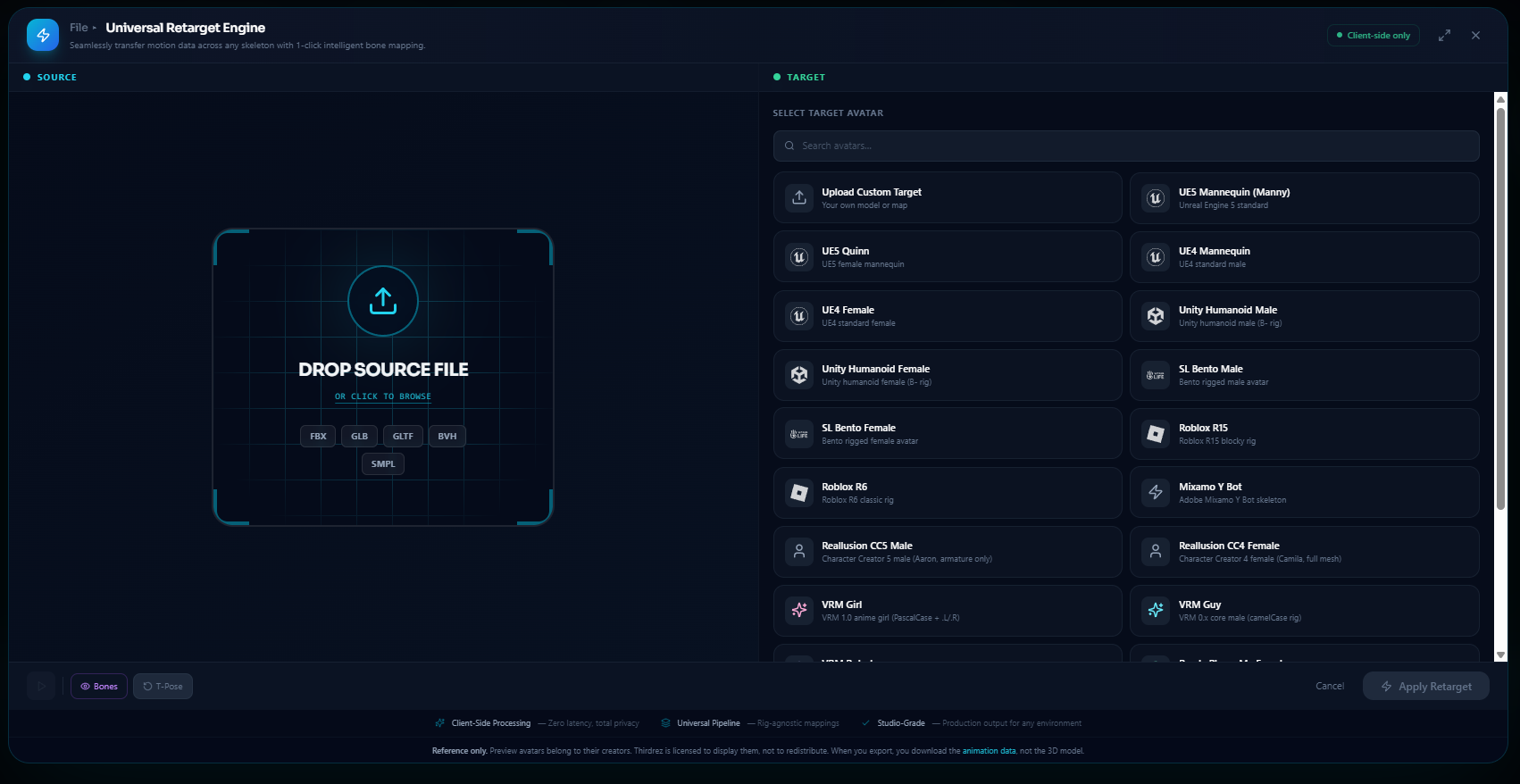
- Loads source clip (the animation) and target rig (your avatar) side-by-side in a split view.
- Auto-maps bones when names match a known convention (Mixamo → Bento mappings are pre-configured, etc.).
- Surfaces unmapped bones for manual override.
- Applies motion with proportion scaling — long-armed source onto short-armed target stays anatomically valid.
- Previews the retargeted clip before committing.
Result: animation from any rig, on any avatar, in seconds.
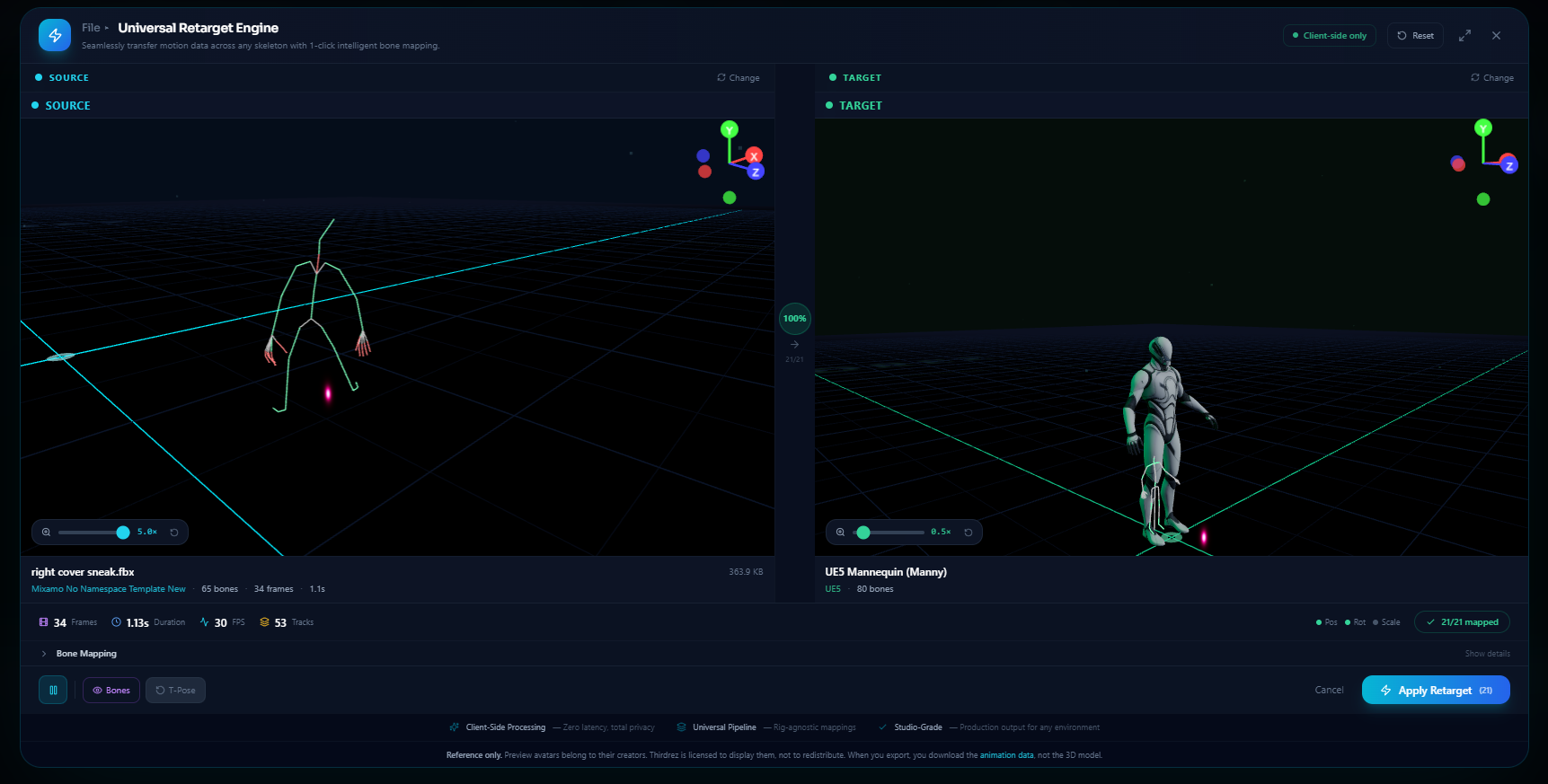
Retarget Studio in split-screen mode. The source clip plays on the left, the target avatar plays the same motion on the right — frame-locked so you can spot any drift the moment it happens.
The split-screen UI
Retarget Studio takes over the editor with a two-pane view:
The bone mapping panel. Auto-detected pairs are filled in green; rows that need attention are highlighted so you only review what the auto-mapper couldn't infer. Override any row manually if your custom rig uses unconventional names.
┌─────────────────────────────┬─────────────────────────────┐
│                             │                             │
│      SOURCE (clip)          │      TARGET (your avatar)   │
│                             │                             │
│   Mixamo walk cycle         │   Custom Bento character    │
│   59 bones, 60 frames       │   159 bones                 │
│                             │                             │
│   [bone list mapping]       │   [bone list mapping]       │
│                             │                             │
└─────────────────────────────┴─────────────────────────────┘
              [Apply Retarget] [Cancel]
Both panes play synchronously. Click play on the source, the target plays the retargeted version in real time.
Supported source and target platforms
Retarget Studio auto-detects rigs on both source and target sides. Pre-configured mappings exist between every pair of these platforms:
| Platform | Notes for retarget |
|---|---|
| Mixamo | Most common source — mixamorig prefix auto-detects |
| Second Life Bento (159 bones) | Full-body + facial + wings/tail |
| Second Life Classic (26 bones) | Legacy SL — basic humanoid |
| Unity Humanoid | Mecanim 54-bone standard |
| UE5 Mannequin | Manny / Quinn 67-bone standard |
| VRM (0.0 + 1.0) | VRoid + VTuber pipeline |
| Ready Player Me | Cross-metaverse avatar standard |
| Reallusion CC4 | Character Creator 4 / iClone, high-fidelity |
| Roblox R15 / R6 | Standard and legacy Roblox |
| Move AI | Markerless mocap ingest |
| Rokoko | Smartsuit / Smartgloves output |
| SMPL | Research / ML pipelines |
| Custom | Set up via Rig Studio first |
When you load source and target, Retarget Studio detects both rigs and auto-applies the relevant mapping. Most of the time, this is all you need.
Common pair quality
| Source → Target | Quality | Notes |
|---|---|---|
| Mixamo → Bento | Excellent | Full-body coverage, high quality |
| Mixamo → Unity Humanoid | Excellent | Mixamo-Unity is the canonical pipeline |
| UE5 Mannequin → Unity | Excellent | Cross-engine standard |
| Move AI / Rokoko → any | Excellent | Designed-for-retarget mocap output |
| Reallusion CC4 → Unity / UE5 | Excellent | High-fidelity preservation |
| VRM → Bento | Good | Some VRM-specific bones (spring) drop in retarget |
| Bento → Unity | Good | SL-specific bones (wings, tail) drop |
| Any → Roblox R15 | Good | Simplified — many source bones map to one R15 bone |
| Any → Roblox R6 | Limited | R6 has only 6 bones; most motion averages into broad strokes |
Manual override
If auto-mapping doesn't catch a specific bone, or you want to override a default:
- In either pane, click on a bone (in the list or the 3D view).
- The corresponding mapped bone in the other pane highlights.
- Click the unmapped bone in the other pane to create a new mapping.
- Repeat for any unmapped or wrongly-mapped bones.
Common manual overrides:
- Custom rigs — Rig Studio set up your rig but mapping rules don't exist for it. Map manually one-time, save the mapping, reuse forever.
- Stylized targets — A target rig with non-standard naming (e.g.
head_jntinstead ofhead). - Partial retargets — You want to retarget only the legs, leaving the arms untouched. Map only the leg chain, leave arms unmapped, and the auto-rig leaves them alone.
Proportion scaling
Source rig may have arms 50% longer than target rig. Naive transfer would have the source's hand position translated onto the target — which would put the target's hand in the wrong world location. Retarget Studio scales:
- Per-segment scale ratio is computed (source segment length ÷ target segment length).
- Position offsets scale by the ratio so the IK target stays anatomically aligned.
- Rotations transfer 1:1 (rotations are scale-invariant).
For most rigs, the result is clean. For dramatically different proportions (a giant retargeted onto a child rig), you'll see some compression artifacts — best practice is to keep source and target within ~30% of each other's proportions.
Source clip ingestion
Retarget Studio accepts source clips from:
- GLB / glTF 2.0 with embedded animation
- BVH (motion capture standard)
- FBX (avatar import path; the FBX import inherits the embedded animation if present)
Source skeleton + clip data are extracted. The clip plays as the source preview.
Workflow — typical session
- Have your target avatar already loaded (and rigged via Rig Studio if it's custom).
File → Retarget Animation(orCtrl + Shift + I).- Drop your source clip (GLB / BVH / FBX) into the source pane.
- Both rigs appear. Auto-mapping highlights matched bones.
- Click around — verify mappings look right. Re-map any wrong ones.
- Hit play. Both panes animate, the target showing the retargeted result.
- If the result looks good, Apply Retarget — the clip lands on the target avatar's timeline as a normal animation, ready to be polished with Mirror, Loop Fixer, Foot Locking, etc.
- If the result looks wrong, fix mappings or manually adjust unmapped bones, re-test.
Edge cases
Source has fewer bones than target
Common for SL retargeting (Mixamo: ~59 bones → Bento: 159 bones). Bones in target without source mapping stay at their rest pose. The result is the body animating per the source while wings/tail/extra hand bones stay still.
Source has more bones than target
Common for game-engine retargeting (UE5: 67 bones → Roblox R15: 15 bones). Source bones get aggregated to the target's parent — multiple Mixamo finger bones map to a single Roblox hand, etc. Detail is lost but the gross motion preserves.
Custom rig mapping not in library
Save the mapping after first use (it's stored per-target-rig). Subsequent retargets to the same rig auto-apply your mapping.
Animation has root motion / "in-place" mismatch
Source clips with root motion (the avatar walks across the world) and source clips with in-place motion (the avatar walks in a treadmill) need different handling. Retarget Studio detects the source's root motion; you can preserve it (and the target avatar will travel) or strip it (and the target stays in place).
Mid-retarget, you change your mind on mapping
Cancel and restart. Retarget Studio doesn't commit until you click Apply, so cancellation is safe.
Related
- Rig Studio — set up a custom target rig before retargeting
- Vision Capture — capture new motion (alternative to retargeting from existing clips)
- Mirror Animation — clean up bilateral asymmetries that may surface from retargeting
- Foot Locking — lock the retargeted clip's feet to ground (often retargeting introduces new sliding)